How To Boost Valorant FPS 2024
If you are looking for How To Boost Valorant FPS 2024, then you have landed in the right place. this article will help you in boosting your valorant fps.
When it comes to fps games, one of the most important aspects of it is frame rates. More frame rates mean a much smoother experience, and valorant fps is important as you can see the enemy much more quickly, so you will have more precision while shooting.
Lower frame rates mean you will experience slow and laggy gameplay. and you will see your opponent much later than you do in fps games. and it would be difficult to maintain your accuracy at low frame rates.
A good valorant fps is necessary if you want to play competitive, as it can put a player at a high advantage and put you at a significant disadvantage if your fps is low.
Read More: How to get the wierd flappy bird crosshair in valorant 2024
In-game Settings To Boost Valorant FPS – Check System Requirements
To boost Valorant fps the first step is to check that your PC configuration meets the system requirements of the game. and that you have at least the minimum specification provided by Riot Games.
| Minimum Requirement |
| CPU: Intel Core 2 Duo E8400 |
| GPU: Intel HD 3000 |
| RAM: 4GB |
| OS: Windows 7 64-Bit |
| Refresh Rate: 30 fps |
| Recommended Requirements |
| CPU: Intel i7 7700K |
| GPU: Nvidia 1080 |
| RAM: 8GB |
| OS: Windows 10 64- Bit |
| Refresh Rate: 60 fps |
| Optimal Settings |
| CPU: intel I9 9900K and above |
| GPU: Nvidia 1080 TI and above |
| RAM: 16GB and above |
| OS: Windows 10 and above |
| Refresh Rate: 144 fps and above |
In-game Settings To Boost Valorant FPS – Lower Graphic Settings
If you are not having proper Valorant fps, and the game is not working properly and is lagging, then you could first try to lower your graphic settings in the game, as it will boost your Valorant fps.
To do that, first, click on the settings icon on the upper right side of the screen, then click on the video section and then click on the graphic quality tab. Then set the graphic settings to the lowest settings. as seen below in the image.
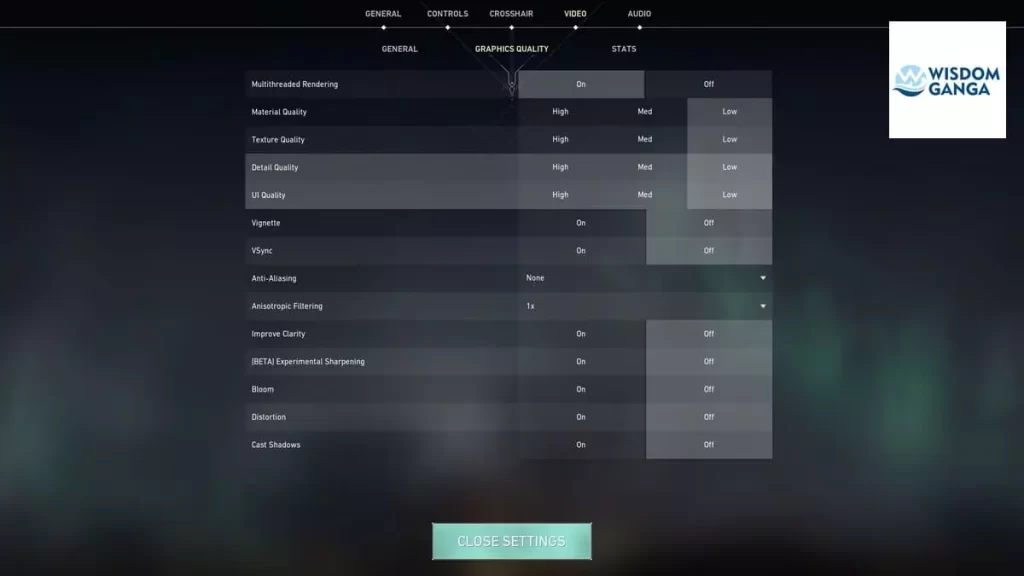
The first option is multi-rendering. If you have this option, make sure it is turned on as it helps in improving game performance. Then there is material quality, texture quality, detail quality, and UI quality. Turn these options off.
Then turn off both the vigentte and vsync options. Also, turn off anti-aliasing, which greatly aids in increasing the frame rate. And you can set the antistrophic filtering to whatever you want as it doesn’t affect the fps that much. It basically improves your skin and gun looks.
Make the clarity, sharpening, bloom, distortion, and shadow options off. After applying these settings, check your game if this has helped and improved your Valorant fps in-game.
In-game Settings To Boost Valorant FPS – Lower Resolution
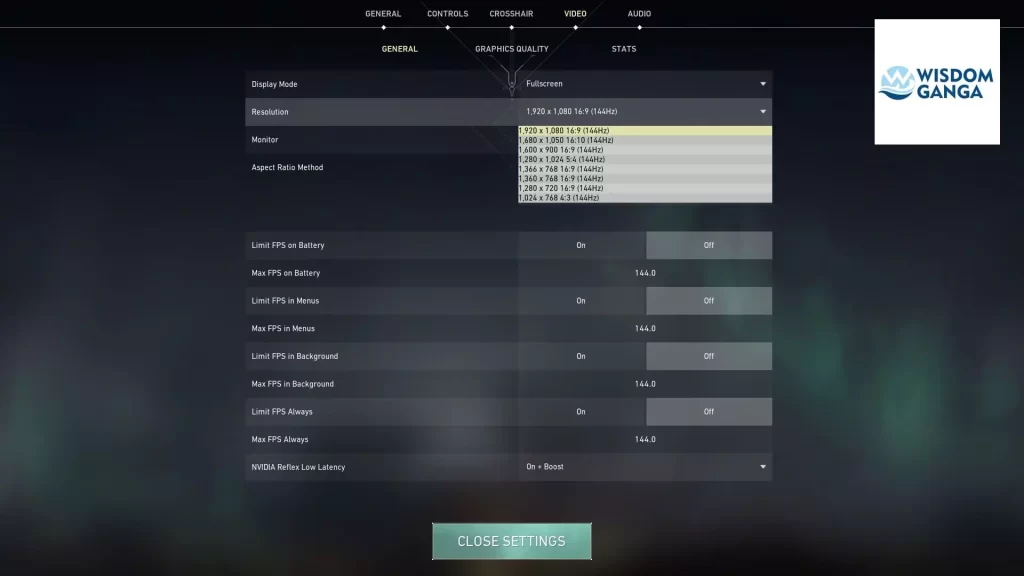
Again, click on the upper right side of the screen on the settings icon, then in the settings, click on the video section, and in the general tab, click on the resolution and set it to 1024 x 768.
This is the lowest resolution in the game, and this resolution might feel kind of blurry and the game will be pixilated and stretched, but you will be able to maintain a good frame rate throughout the game, resulting in smooth gameplay.
If you don’t like the 1024 x 768 resolution, then you can switch to some other resolution other than the 1920 x 1080. Some of the most popular ones are 1280 x 1024 and 1366 x 768.
These resolutions are popularly used by many players and some top esports players in particular. As they make the screen wide, which is preferred by some players from the CS GO backgrounds.
Also turn off the “show mature content” option, which includes the blood and corpses. That will turn off the blood in the game when you shoot the enemy and the corpses that lie on the ground when you kill the enemy.
Settings To Boost Valorant FPS – Windows Settings
You can also change some settings outside of the game on your PC or laptop to boost your Valorant fps in-game. like the power management, game mode settings, etc. that can also help you in boosting your Valorant fps.
Power option – Press the Windows icon and click on the settings icon, then click on the “hardware and sound option.” After that, click on power options and select the high-performance power plan If you didn’t have a high-performance power plan, then you can make one by clicking “create new power plan”.
Game Mode – Press the Windows icon and type “game mode settings” in the search bar and click on it. Make sure that it is turned on.
High Performance – You can set Valorant to high performance in graphic settings. To do that, first type “graphic settings” in the windows search bar by clicking the windows icon. After that, click on Add an App and browse to the Valorant folder on your PC where it is installed.
It is typically installed in c: program files. After selecting it, click on the Valorant icon below to select the options and set the Valorant to high performance. It will help in boosting your Valorant fps.
Graphic Card Settings To Boost Valorant FPS – Nvidia/AMD Settings
Nvidia Control Panel Settings for boosting your ValorantFPS
Open the Nvidia Control Panel by right-clicking on the desktop. Change “Image Settings from 3D Application” to “Use the Advanced 3D Image Settings” under “Adjust Image Settings.” Remember to press apply thereafter.
Now, go to Manage 3D Settings, and add Valorant under “Program Settings” or you can make changes to the world also. Use the following recommended Valorant settings for Nvidia Control Panel to achieve maximum performance and get the best Valorant fps.
- Image Sharpening – On
- Anisotropic Filtering – Off
- FXAA -Antialiasing – FXAA: Off
- Gamma Correction – Antialiasing: Off
- Mode – Antialiasing – Off
- Background Max Frame Rate – 20
- Low Latency Mode – Ultra
- Max Frame Rate – Off
- Power Management Mode – Prefer Max Performance
- Monitor Technology – Depends on Monitor
- Multi-Frame Sampled AA (MFAA) – Off
- Anisotropic Sample Optimization -Texture Filtering: On
- Negative LOD Bias – Texture Filtering: Allow
- Quality – Texture Filtering: High Performance
- Trilinear Optimization – Texture Filtering: On
- Threaded Optimization – Auto
AMD Radeon Control Panel Settings For Boosting Valorant FPS
Navigate to AMD Control Panel, over to Gaming, and select Global Graphics. For high performance, select eSports as it will significantly improve performance Under the eSports Tab, change your settings in the AMD Control Panel to get the best graphic performance and best Valorant fps.
- Radeon Anti-Lag – Enabled
- Radeon Chill – Disabled
- Radeon Boost – Disabled
- Radeon Image Sharpening – Enabled
- Sharpness – Personal Preference
- Wait for Vertical Refresh – Always off
- Anti-Aliasing – Use Application Settings
- Anti-Aliasing Method – Multisampling
- Morphological Anti-Aliasing – Disabled
- Anisotropic Filtering – Disabled
- Texture Filtering Quality – Performance
- Surface Format Optimization – Enabled
- Tessellation Mode – Override application settings
- Maximum Tessellation Level – Off
- OpenGL Triple Buffering – Disabled
- Reset Shader Cache – Perform Reset
Settings To Boost Valorant FPS – Clear Cache and Temp Files
It is not as effective as other methods to boost your Valorant fps, but it can help to fasten the PC.
Click on the Windows icon, type “Temp” in the search bar, and then click continue. In the temp folder, delete all files by pressing CTRL + A and deleting.
Then again, type “Prefetch” and click continue to delete all the files by doing the same process mentioned above.
And lastly, type “%temp%” and click Continue to delete all the files by doing the same process mentioned above.
Other Reads: https://www.wisdomganga.com/valorant-new-chronovoid-bundle/
Please share your thought and views about this article How To Boost Valorant FPS 2024 in the comment box. Like and share this article, and also follow us Facebook, Twitter or Instagram for regular updates.